


A redirect seems simple: one URL sends visitors to another. But they’re a vital part of SEO. Set one up incorrectly, and it can create problems for search engines, frustrate users, slow your site, and affect search performance.
A single misconfigured redirect can cause:
- Broken pages and 404 errors
- Lost link equity and rankings
- Redirect chains and loops
- Indexing problems in Google Search Console
- Crawl budget waste that keeps important pages from being discovered
Redirects are how you protect your law firm’s SEO authority when you update URLs, migrate your domain, reorganize content, or remove old pages. Get them wrong and search engines lose track of your content.
This guide covers all of it:
You’ll also get copy-paste code snippets, troubleshooting workflows, and practical examples you can use right away.
Before You Implement Redirects
New to redirects? Our beginner’s guide to URL redirects covers how they work, the types of redirects and their differences, and the most common mistakes. Start there first.
If you’re already up to speed, here’s a quick review.
Redirect types
The right redirect type depends on whether the move is permanent or temporary:
- 301 redirects: Permanent move. Passes link equity to the new URL. Use for domain migrations, URL changes, and HTTP-to-HTTPS moves.
- 302 redirects: Temporary move. Search engines keep the original URL indexed. Use for maintenance, A/B tests, and short-term changes.
- 307/308 redirects: Method-preserving versions of 302 and 301. Mainly relevant in API and web app contexts where preserving POST requests matters.
- Meta refresh and JavaScript: Client-side redirects that fire in the browser rather than at the server. Use server-side redirects whenever possible.
When a redirect isn’t what you need
Two situations where a redirect is the wrong tool.
Canonical tags are for duplicate or near-duplicate content. A canonical tag tells search engines which version of a page to treat as primary while keeping all versions accessible to users, which is the key difference from a redirect. A redirect sends users away from the original URL. A canonical lets both URLs stay functional while signaling to search engines which one should rank.
Use a canonical tag when:
- The same content is accessible at multiple URLs, such as a page reachable with and without URL parameters
- Product pages have parameter variations for filters, sorting, or tracking (e.g., /shoes?color=black)
- You’ve syndicated content to another site and want the original to rank
- A page exists in two categories and both URLs are valid
If users should never land on the original URL, use a redirect. If both URLs can legitimately exist, a canonical is preferred.
A 404 indicates the page is “not found” while a 410 indicates the page is permanently deleted.. Redirecting deleted pages to your homepage or a loosely related page creates a poor experience and search engines may treat it as a soft 404 anyway.
Before returning a 404 or 410, check whether the page has backlinks. If it does, those links stop passing value the moment the page returns an error. If you can find a genuinely relevant destination, redirect there. If the page has no traffic, no backlinks worth protecting, and no relevant replacement, a 404 or 410 is preferred.
Platform | Where to configure it | Redeploy required? | Best use case |
Apache | .htaccess in site root | No | Standard shared hosting; single URLs and bulk pattern redirects via regex |
Nginx | server block config file | Reload needed | High-traffic sites; clean regex redirects with precise path control |
WordPress plugin | Redirection or Yoast dashboard | No | Content editors managing page and post URL changes without server access |
Managed host | Host portal (WP Engine, Kinsta) | No | WordPress sites on managed hosting; server-level speed without editing config files |
Shopify | Admin › Content › URL redirects | No | Product, collection, and page URL changes on Shopify storefronts |
Cloudflare | Rules › Redirect Rules or Bulk Redirects | No | Domain migrations, HTTPS rewrites, and large redirect maps handled at the edge |
Vercel / Netlify | next.config.js or _redirects | Deploy required | JAMstack and Next.js sites; redirects committed to version control alongside code |
Step-by-Step: Setting Up Redirects on Apache (.htaccess)
If your site runs on Apache, you can often manage redirects with the .htaccess file. This file controls rules for the directory it sits in, including redirects, rewrites, access rules, and other server behavior.
Before editing it, make a backup. A small syntax mistake in .htaccess can break your site or trigger a 500 Internal Server Error, which usually means the server cannot process the request because of a configuration problem.
1. Find and Back Up Your .htaccess File
You can usually find .htaccess in your site’s root directory, often called:
/public_html/
/www/
</htdocs/
/site-name/
Use one of these methods to access it:
- File Manager in your hosting account
- FTP or SFTP
- SSH
- Your managed host’s redirect tool
Before making changes, download a copy and rename it something like:
.htaccess-backup-2026-05-20
If anything breaks, restore that file immediately.
2. Add a Single URL 301 Redirect
For a simple one-page redirect, use Apache’s Redirect directive:
Redirect 301 /old-page/ https://www.example.com/new-page/
This tells Apache:
- Requests for /old-page/ should move permanently
- Visitors should be sent to https://www.example.com/new-page/
- Search engines should treat the new URL as the replacement
Use the path only for the old URL:
/old-page/
Use the full URL for the destination:
https://www.example.com/new-page/
Apache’s Redirect directive is designed for simple URL redirects. For more complex patterns, Apache recommends using mod_rewrite.
3. Redirect One Page Without Affecting Similar URLs
Be careful with broad paths. This rule:
Redirect 301 /old https://www.example.com/new
may also affect URLs that begin with /old, such as:
/old-products/
/old-blog-post/
/old-page-example/
For exact matching, use RedirectMatch:
RedirectMatch 301 ^/old-page/?$ https://www.example.com/new-page/
This matches:
/old-page
/old-page/
But it does not match:
/old-page-2
/old-page/example
4. Redirect an Entire Folder
If you changed a folder structure, you can redirect everything inside one folder to another folder.
RedirectMatch 301 ^/old-folder/(.*)$ https://www.example.com/new-folder/$1
Example:
/old-folder/page-1/
Redirects to:
https://www.example.com/new-folder/page-1/
The (.*) captures everything after /old-folder/. The $1 places that same captured path after /new-folder/.
5. Redirect URLs With Regex
Use regex redirects when you need to redirect many URLs that follow the same pattern.
Example: redirect old blog URLs to a new blog structure.
RedirectMatch 301 ^/blog/([0-9]{4})/([0-9]{2})/(.*)$ https://www.example.com/articles/$3
This redirects:
/blog/2024/08/sample-post/
To:
https://www.example.com/articles/sample-post/
Here’s what each part does:
- ^ means the match starts at the beginning of the path
- /blog/ matches the old blog folder
- ([0-9]{4}) captures a four-digit year
- ([0-9]{2}) captures a two-digit month
- (.*) captures the final slug
- $3 inserts the third captured value into the destination URL
Use regex carefully. Test several URLs before pushing these rules live.
6. Redirect an Entire Domain to a New Domain
For a domain migration, use mod_rewrite so you can preserve the full path.
RewriteEngine On
RewriteCond %{HTTP_HOST} ^oldexample\.com$ [NC,OR]
RewriteCond %{HTTP_HOST} ^www\.oldexample\.com$ [NC]
RewriteRule ^(.*)$ https://www.newexample.com/$1 [R=301,L]
This redirects:
http://oldexample.com/about/
To:
https://www.newexample.com/about/
And redirects:
http://www.oldexample.com/services/web-design/
To:
https://www.newexample.com/services/web-design/
Here’s what the rule does:
- RewriteEngine On enables rewrite rules
- RewriteCond checks the requested domain
- [NC] makes the domain match case-insensitive
- [OR] means either host condition can match
- ^(.*)$ captures the full requested path
- $1 appends that path to the new domain
- [R=301,L] sends a permanent redirect and stops processing the rule
Apache’s mod_rewrite can handle full URL-path redirects and more complex rewrite logic, but it is also easier to misconfigure than simple Redirect rules.
7. Force HTTPS on Apache
If your SSL certificate is active and you want all HTTP traffic to redirect to HTTPS, use:
RewriteEngine On
RewriteCond %{HTTPS} off
RewriteRule ^(.*)$ https://www.example.com/$1 [R=301,L]
This redirects:
http://www.example.com/page/
To:
https://www.example.com/page/
Only add this after confirming your SSL certificate works. If HTTPS is not configured correctly, users may see browser security warnings.
8. Redirect Non-WWW to WWW
To redirect all traffic to www:
RewriteEngine On
RewriteCond %{HTTP_HOST} ^example\.com$ [NC]
RewriteRule ^(.*)$ https://www.example.com/$1 [R=301,L]
This redirects https://example.com/about/ to https://www.example.com/about/
9. Redirect WWW to Non-WWW
To redirect all traffic to non-www:
RewriteEngine On
RewriteCond %{HTTP_HOST} ^www\.example\.com$ [NC]
RewriteRule ^(.*)$ https://example.com/$1 [R=301,L]
This redirects https://www.example.com/about/ to https://example.com/about/
Do not use both www-to-non-www and non-www-to-www rules at the same time. That can create a redirect loop.
10. Place Redirect Rules in the Right Order
Put specific redirects before broad redirects.
Good order:
Redirect 301 /old-product/ https://www.example.com/new-product/

RedirectMatch 301 ^/old-category/(.*)$ https://www.example.com/new-category/$1

RewriteEngine On
RewriteCond %{HTTP_HOST} ^oldexample\.com$ [NC]
RewriteRule ^(.*)$ https://www.newexample.com/$1 [R=301,L]
Bad order:
RewriteEngine On
RewriteRule ^(.*)$ https://www.newexample.com/$1 [R=301,L]

Redirect 301 /old-product/ https://www.example.com/new-product/
The broad rule may fire before Apache reaches the specific page redirect.
Common .htaccess Mistakes to Avoid
Even small mistakes in .htaccess can cause redirect loops, broken pages, or server errors, so review each rule carefully before pushing changes live.
- Forgetting to back up the file: Always save a clean copy before editing.
- Using a relative destination URL: Use the full destination URL, including https://.
- Creating redirect loops: Make sure the source URL does not redirect back to itself.
- Stacking too many redirects: Redirect old URLs directly to the final destination, not through several hops.
- Using regex when a simple redirect works: Use Redirect 301 for one-to-one redirects. Save regex for patterns.
- Redirecting every old page to the homepage: Send users to the closest relevant page. If no relevant page exists, a 404 or 410 may be better.
- Forgetting query strings: Simple redirects may not handle query parameters the way you expect. Test URLs with tracking parameters or filters.
- Leaving old WordPress rules in the wrong place: If your site uses WordPress, avoid placing custom redirects inside the auto-generated WordPress block unless you know what you’re doing.
A typical WordPress block looks like this:
# BEGIN WordPress
# The directives between "BEGIN WordPress" and "END WordPress" are dynamically generated.
# END WordPress
Place custom redirects above the WordPress block so WordPress does not overwrite them.
Test Your Apache Redirects
After saving the file, test the redirect in your browser and with curl:
curl -I https://www.example.com/old-page/
You want to see a 301 status and the correct Location header:
HTTP/2 301
location: https://www.example.com/new-page/
Then test the final URL:
curl -I https://www.example.com/new-page/
The final URL should return:
HTTP/2 200
If you see multiple 301 or 302 responses before the final 200, you may have a redirect chain. If the request is never resolved, you may have a redirect loop.
Step-by-Step: Setting Up Redirects on Nginx
Nginx redirects are usually managed inside your site’s server block. This is different from Apache, where redirects are often placed in .htaccess. With Nginx, you edit the main configuration file, test it, then reload Nginx so the change takes effect.
Nginx supports both return and rewrite directives. For most redirects, return is cleaner and easier to maintain. Reserve rewrite for pattern matching and more complex URL changes.
- Return: Simple redirects because it is clearer and easier to maintain
- Rewrite: Only when you need pattern matching or more complex URL changes.
1. Find Your Nginx Configuration File
Your Nginx site configuration is usually in one of these locations:
/etc/nginx/sites-available/example.com
/etc/nginx/conf.d/example.com.conf
/etc/nginx/nginx.conf
On many Ubuntu or Debian servers, active site files are stored in:
/etc/nginx/sites-enabled/
But you usually edit the matching file in:
/etc/nginx/sites-available/
Before changing anything, make a backup:
sudo cp /etc/nginx/sites-available/example.com /etc/nginx/sites-available/example.com.backup
If your host uses a control panel, managed hosting dashboard, or containerized setup, the file path may be different. Do not guess. Confirm the active config file before editing.
2. Add a Single URL 301 Redirect
For one page, place an exact-match location block inside the correct server block:
server {
server_name www.example.com example.com;

location = /old-page/ {
return 301 https://www.example.com/new-page/;
}

location / {
try_files $uri $uri/ =404;
}
}
The = makes this an exact match.
This redirects:
https://www.example.com/old-page/
To:
https://www.example.com/new-page/
It does not redirect:
https://www.example.com/old-page/example/
https://www.example.com/old-page-2/
Use this format when you only want one specific URL to redirect.
3. Redirect a URL Without a Trailing Slash
If both versions of the old URL exist, add both exact-match locations:
location = /old-page {
return 301 https://www.example.com/new-page/;
}
location = /old-page/ {
return 301 https://www.example.com/new-page/;
}
This catches:
/old-page
/old-page/
And sends both to:
https://www.example.com/new-page/
This is often safer than relying on a broader regex rule for one URL.
4. Redirect an Entire Folder
If you changed a directory structure, use a prefix location with rewrite:
location /old-folder/ {

rewrite ^/old-folder/(.*)$ https://www.example.com/new-folder/$1 permanent;

}
This redirects:
/old-folder/page-1/
To:
https://www.example.com/new-folder/page-1/
The (.*) captures everything after /old-folder/, and $1 adds it after /new-folder/.
You can also use return if the path should stay the same after the folder name:
location /old-folder/ {
return 301 https://www.example.com/new-folder$request_uri;
}
Be careful with that version: $request_uri includes the original full path and query string. For many folder migrations, a controlled rewrite rule is easier to reason about.
5. Redirect URLs With Regex
Use regex only when many URLs follow the same pattern.
Example: redirect old dated blog URLs to a cleaner article structure.
location ~ ^/blog/[0-9]{4}/[0-9]{2}/(.+)$ {
return 301 https://www.example.com/articles/$1;
}
This redirects:
/blog/2024/08/sample-post/
To:
https://www.example.com/articles/sample-post/
Here’s what each part does:
- location ~ starts a case-sensitive regex location
- ^/blog/ matches URLs that begin with /blog/
- [0-9]{4} matches a four-digit year
- [0-9]{2} matches a two-digit month
- (.+) captures the remaining slug
- $1 inserts the captured slug into the new URL
If you need case-insensitive matching, use ~* instead:
location ~* ^/blog/[0-9]{4}/[0-9]{2}/(.+)$ {
return 301 https://www.example.com/articles/$1;
}
Regex redirects are powerful, but they are easy to overmatch. Test several real URLs before using them on a live site.
6. Redirect an Entire Domain to a New Domain
For a domain migration, create a server block for the old domain and send all traffic to the new domain:
server {
listen 80;
server_name oldexample.com www.oldexample.com;

return 301 https://www.newexample.com$request_uri;
}
This redirects:
http://oldexample.com/about/
To:
https://www.newexample.com/about/
And:
http://www.oldexample.com/services/web-design/?source=old
To:
https://www.newexample.com/services/web-design/?source=old
$request_uri preserves the path and query string.
If the old domain also receives HTTPS traffic, add a matching SSL server block:
server {
listen 443 ssl;
server_name oldexample.com www.oldexample.com;

ssl_certificate /path/to/fullchain.pem;
ssl_certificate_key /path/to/privkey.pem;

return 301 https://www.newexample.com$request_uri;
}
Do not remove the SSL certificate from the old domain too soon. Users and search engines may still request the HTTPS version of old URLs.
7. Force HTTP to HTTPS
If your SSL certificate is active, redirect HTTP traffic to HTTPS:
server {
listen 80;
server_name example.com www.example.com;

return 301 https://www.example.com$request_uri;
}
Then your HTTPS server block handles the actual site:
server {
listen 443 ssl;
server_name www.example.com;

ssl_certificate /path/to/fullchain.pem;
ssl_certificate_key /path/to/privkey.pem;

root /var/www/example.com;
index index.html index.php;
}
This redirects:
http://www.example.com/page/
To:
https://www.example.com/page/
Only add this after confirming the HTTPS version works. Otherwise, users may be redirected to a broken or insecure page.
8. Redirect Non-WWW to WWW
To redirect all traffic to www:
server {
listen 80;
listen 443 ssl;
server_name example.com;

ssl_certificate /path/to/fullchain.pem;
ssl_certificate_key /path/to/privkey.pem;

return 301 https://www.example.com$request_uri;
}
This redirects https://example.com/about/ to https://www.example.com/about/
9. Redirect WWW to Non-WWW
To redirect all traffic to non-www:
server {
listen 80;
listen 443 ssl;
server_name www.example.com;

ssl_certificate /path/to/fullchain.pem;
ssl_certificate_key /path/to/privkey.pem;

return 301 https://example.com$request_uri;
}
This redirects https://www.example.com/about/ to https://example.com/about/
Do not configure both directions. Redirecting www to non-www and non-www to www at the same time can create a loop.
10. Use rewrite Only When You Need It
For simple redirects, this is usually best:
return 301 https://www.example.com/new-page/;
Use rewrite when the destination depends on part of the original URL:
rewrite ^/products/old-category/(.*)$ https://www.example.com/products/new-category/$1 permanent;
This redirects:
/products/old-category/item-123/
To:
https://www.example.com/products/new-category/item-123/
In Nginx, permanent returns a 301 redirect. The official Nginx rewrite module supports return and rewrite directives for this kind of redirect behavior.
11. Test and Reload Nginx Safely
For general users, this is a more advanced step. If you are not confident in your ability to execute this step, skip it.
Do not reload Nginx before testing the configuration.
First, run:
sudo nginx -t
If the syntax is valid, you should see output similar to:
nginx: the configuration file /etc/nginx/nginx.conf syntax is ok
nginx: configuration file /etc/nginx/nginx.conf test is successful
Then reload Nginx:
sudo systemctl reload nginx
If your server does not use systemctl, use:
sudo service nginx reload
Reloading applies the new configuration without fully stopping the server. Restarting is more disruptive, so use reload unless your server setup requires otherwise.
12. Test the Redirect
Use curl to check the status code and destination:
curl -I https://www.example.com/old-page/
You want to see:
HTTP/2 301
location: https://www.example.com/new-page/
Then test the destination URL:
curl -I https://www.example.com/new-page/
The final page should return:
HTTP/2 200
If the old URL returns a 301 and the new URL returns a 200, the redirect is working correctly.
Common Nginx Redirect Mistakes to Avoid
Even small Nginx mistakes can cause redirect loops, failed reloads, or redirects that affect more URLs than intended.
- Reloading before testing the config: Always run sudo nginx -t before reloading.
- Editing the wrong server block: Make sure you are editing the server block for the correct domain and protocol.
- Using regex for simple one-page redirects: Use an exact-match location block when only one URL needs to move.
- Forgetting HTTPS traffic on old domains: During a domain migration, the old HTTPS URLs still need a valid SSL block.
- Creating www/non-www loops: Choose one preferred domain version and redirect only in that direction.
- Forgetting query strings: Use $request_uri when you need to preserve the full path and query string.
- Putting broad rules above specific rules: Specific redirects should be evaluated before broad catch-all redirects.
- Using rewrite when return is enough: return is simpler and easier to debug for straightforward redirects.
After adding Nginx redirects, test several real URLs from your redirect map. Include old pages, query-string URLs, trailing-slash variations, and the final destination pages. A redirect is not finished until you confirm it returns the right status code and lands on the correct final URL.
Step-by-Step: Setting Up Redirects in WordPress
WordPress gives you a few ways to create redirects. The best method depends on your site, your hosting setup, and how many redirects you need to manage.
For most WordPress users, the safest options are:
- Using a redirect plugin
- Using your SEO plugin’s redirect manager
- Adding redirects through your managed host
- Adding custom code only when you are comfortable editing theme files
If your site is on managed WordPress hosting, check your host’s redirect tools first. Server-level redirects are often faster and more reliable than plugin-based redirects.
1. Set Up Redirects With the Redirection Plugin
The Redirection plugin is one of the most common free options for WordPress redirects. It lets you manage 301 redirects, track 404 errors, and create redirect rules without editing Apache or Nginx files directly.
- After installing the plugin, go to Plugins > Add New
- Search for Redirection
- Install and activate the plugin.
- Then go to Tools > Redirection
The plugin may guide you through a short setup process. Once setup is complete, you can add your first redirect.
- For a single-page redirect, enter the old URL path in the source field: /old-page/
- Then enter the new destination URL: https://www.example.com/new-page/
- Choose: 301 – Moved Permanently
- Then save the redirect.
This sends visitors from:
https://www.example.com/old-page/
To:
https://www.example.com/new-page/
Use the source path only for the old URL. Use the full destination URL for the new page.
For example:
Source URL: /old-services/
Target URL: https://www.example.com/services/
Redirect type: 301
After saving, test the old URL in a private browser window or with curl.
curl -I https://www.example.com/old-services/
You should see a 301 response and a location header pointing to the new page.
2. Use Regex Redirects in Redirection for Bulk Changes
If many URLs follow the same pattern, you can use a regular expression instead of adding each redirect one by one.
Example old URLs:
/blog/2024/old-post/
/blog/2023/another-post/
New URL format:
/articles/old-post/
/articles/another-post/
A regex source might look like this:
^/blog/[0-9]{4}/(.*)/?$
Target URL:
https://www.example.com/articles/$1/
This captures the post slug and moves it into the new /articles/ folder.
Use regex carefully. A broad pattern can redirect more URLs than intended. Test several real examples before adding a regex redirect to a live site.
3. Set Up Redirects With Yoast SEO Premium
If you already use Yoast SEO Premium, you can manage redirects from the Yoast redirect manager instead of installing another plugin. Yoast’s redirect manager is designed to help create and manage redirects when you move or delete content.
- In WordPress, go to Yoast SEO > Redirects
- Choose the redirect type. For most permanent URL changes, select 301 Moved Permanently
- Then enter the old URL and the new URL.
Example:
Old URL: /old-product-guide/
New URL: https://www.example.com/product-guide/
Type: 301
Save the redirect and test it.
Yoast may also prompt you to create a redirect when you delete or change a post URL. This can be useful because it catches redirect opportunities at the moment content changes.
Use Yoast’s redirect manager when:
- You already have Yoast SEO Premium
- You want redirect management inside your SEO workflow
- You are mainly handling page, post, and content redirects
- You do not need advanced server-level redirect logic
Avoid running multiple redirect plugins at the same time. If Redirection, Yoast, and your host are all managing redirects, troubleshooting becomes much harder.
4. Add Redirects With functions.php
You can add redirects with code, but this should not be your first choice for most WordPress sites. A plugin or host-level redirect tool is usually easier to manage.
Use this method only when:
- You are comfortable editing WordPress theme files
- You have access to a staging site
- You are using a child theme
- You only need a small number of custom redirects
- You understand that theme updates can overwrite changes
- The pages you are redirecting is available on the site; if it’s been deleted, it would return a 404
WordPress provides the wp_redirect() function for redirects, and WordPress notes that it should almost always be followed by exit; so the request stops after the redirect is sent.
Add this to your child theme’s functions.php file:
function example_redirect_old_page() {
if ( is_page( 'old-page' ) ) {
wp_redirect( home_url( '/new-page/' ), 301 );
exit;
}
}
add_action( 'template_redirect', 'example_redirect_old_page' );
This redirects the WordPress page with the slug:
old-page
To:
/new-page/
With a 301 status.
For a redirect based on the requested path, use:
function example_redirect_by_path() {
$request_uri = $_SERVER['REQUEST_URI'];

if ( $request_uri === '/old-page/' ) {
wp_redirect( home_url( '/new-page/' ), 301 );
exit;
}
}
add_action( 'template_redirect', 'example_redirect_by_path' );
This checks the requested URL path and redirects only when it matches /old-page/.
For several redirects, use an array instead of repeating the same function:
function example_multiple_redirects() {
$redirects = array(
'/old-page/'   => '/new-page/',
'/old-services/'   => '/services/',
'/old-contact-us/' => '/contact/',
);

$request_uri = $_SERVER['REQUEST_URI'];

if ( array_key_exists( $request_uri, $redirects ) ) {
wp_redirect( home_url( $redirects[$request_uri] ), 301 );
exit;
}
}
add_action( 'template_redirect', 'example_multiple_redirects' );
This approach is manageable for a few redirects, but it does not scale well for large migrations. If you have dozens or hundreds of redirects, use a plugin, CSV import, or host-level redirect tool instead.
5. Be Careful With Query Strings in WordPress Code Redirects
$_SERVER[‘REQUEST_URI’] includes the path and query string.
That means this URL:
/old-page/?utm_source=newsletter
Does not exactly match:
/old-page/
If you want to match the path only, parse the URL first:
function example_redirect_ignore_query_string() {
$request_uri = $_SERVER['REQUEST_URI'];
$path = parse_url( $request_uri, PHP_URL_PATH );

if ( $path === '/old-page/' ) {
wp_redirect( home_url( '/new-page/' ), 301 );
exit;
}
}
add_action( 'template_redirect', 'example_redirect_ignore_query_string' );
This redirects /old-page/ even if the visitor arrives with tracking parameters.
6. Manage Redirects on WP Engine
WP Engine handles redirects differently than a standard Apache setup. WP Engine says .htaccess is deprecated, or no longer used, on its platform, so redirects should be managed through its portal tools instead of relying on .htaccess.
In WP Engine, redirects are typically managed from the User Portal. For newer redirects, WP Engine points users toward the Web Rules area rather than the older redirect rules page.
Use WP Engine redirect tools when:
- Your site is hosted on WP Engine
- You need server-level redirect handling
- You are managing migration redirects
- You want redirects to run before WordPress loads
This is usually better than adding a redirect plugin because the request can be handled at the hosting layer.
After adding a redirect in WP Engine, test the old URL and clear cache if the old behavior still appears.
7. Manage Redirects on Kinsta
Kinsta lets you add 301 and 302 redirects from MyKinsta under your WordPress site’s redirect settings. Kinsta also supports bulk importing redirect rules and describes this as a server-level method, which is typically more efficient than handling redirects inside WordPress.
In MyKinsta, go to Sites > Your site > Redirects
Then add a redirect rule. Example:
Redirect from: /old-page/
Redirect to: /new-page/
Redirect type: 301
Kinsta recommends clearing cache after adding or removing redirects.
Use Kinsta redirects when:
- Your site is hosted on Kinsta
- You want server-level redirects
- You need to manage redirect rules without editing Nginx files
- You need bulk redirect imports
8. Use Managed Host Redirects When Available
Many managed WordPress hosts provide their own redirect tools. These are often the best option for production sites because they run before WordPress and reduce plugin overhead.
Host-level redirects are especially useful for:
- Domain migrations
- Large URL restructures
- HTTP to HTTPS redirects
- WWW to non-WWW redirects
- Non-WWW to WWW redirects
- Redirects that must work even if WordPress has an error
Plugin redirects are still useful for:
- Small content changes
- Post and page slug changes
- Marketing landing pages
- Editorial teams that need dashboard access
- Tracking 404 errors inside WordPress
As a rule, keep redirects in one primary location whenever possible. If some rules live in your host dashboard, others in Redirection, and others in functions.php, debugging becomes slow and risky.
9. Clear Cache After Adding Redirects
WordPress redirects can be affected by several caching layers:
- WordPress caching plugins
- Managed host cache
- CDN cache
- Browser cache
- Object cache
After adding or changing redirects, clear the relevant caches before testing again.
Start with:
- WordPress cache plugin
- Host cache
- CDN cache
- Browser cache or private window
If a redirect still does not work, test it with curl so you can see the actual status code.
curl -I https://www.example.com/old-page/
You want to see:
HTTP/2 301
location: https://www.example.com/new-page/
Then test the final URL:
curl -I https://www.example.com/new-page/
The final page should return:
HTTP/2 200
Common WordPress Redirect Mistakes to Avoid
WordPress makes redirects easier to manage, but plugin conflicts, caching, and duplicated rules can still cause problems.
- Using multiple redirect plugins at the same time: Pick one primary redirect tool to avoid conflicts.
- Adding the same redirect in your host, plugin, and code: Duplicate redirects make troubleshooting harder and can create unexpected behavior.
- Editing the parent theme’s functions.php file: Parent theme updates can overwrite your changes. Use a child theme or a custom plugin.
- Forgetting exit; after wp_redirect(): The redirect may not stop cleanly if execution continues.
- Redirecting every 404 to the homepage: Use the closest relevant replacement page. If no replacement exists, a 404 or 410 may be better.
- Ignoring caching after changes: Clear cache before assuming a redirect failed.
- Using plugin redirects for large migrations without testing performance: For large redirect maps, host-level or server-level redirects are usually safer.
- Forgetting to update internal links: Redirects help users and search engines reach the new URL, but your site should link directly to the final destination.
After setting up WordPress redirects, test several examples manually and crawl the site if you changed many URLs. Make sure old URLs return the correct redirect status, final URLs return 200, and internal links point directly to the new pages.
Step-by-Step: Redirects on Other Platforms (Shopify, Cloudflare, Vercel)
Not every site runs on Apache, Nginx, or WordPress. E-commerce platforms, CDNs, and modern frontend frameworks often handle redirects differently, and in many cases, you will configure redirects through a dashboard or deployment file instead of editing server configs directly.
The key is still the same:
- Use permanent redirects for permanent URL changes
- Preserve important paths during migrations
- Avoid chains and loops
- Test every redirect after deployment
Set Up Redirects in Shopify
Shopify includes a built-in URL redirect tool inside the admin dashboard. This is the safest option for most Shopify stores because redirects are handled at the platform level without editing server files.
- In Shopify, go to Content > Menus > URL Redirects.
- Or in some Shopify admin layouts, Online Store > Navigation > URL Redirects
- Then click Create URL redirect
- Enter the old URL path: /products/old-product
- Then enter the new destination: /products/new-product
- Save the redirect.
Shopify automatically creates a 301 redirect for these changes. Shopify also gives you the option to automatically generate redirects when you change a product, collection, page, or blog URL. Example:
Redirect from:
/collections/summer-sale

Redirect to:
/collections/spring-sale
This sends visitors and search engines from the old collection URL to the new one.
Note: Complex regex redirects or cross-domain migrations may be difficult in the native Shopify redirect tool. In such cases, use CloudFlare or the server.
Import Shopify Redirects in Bulk
For larger migrations, Shopify allows comma separated values (CSV) imports for redirects. This is much faster than adding redirects one by one.
A redirect CSV usually includes columns like:
Redirect from,Redirect to
/products/old-item,/products/new-item
/blogs/news/old-post,/blogs/news/new-post
Bulk imports are especially useful for:
- Platform migrations
- Product URL restructures
- Collection reorganizations
- Large ecommerce catalog updates
Before importing:
- Remove duplicate rules
- Double-check destination URLs
- Test a small batch first
A bad import can create hundreds of broken redirects very quickly.
Create Redirects With Cloudflare Rules
Cloudflare can handle redirects before requests even reach your origin server. This is useful for:
- Domain migrations
- HTTPS redirects
- WWW/non-WWW redirects
- Country-based redirects
- High-traffic sites that need edge-level performance
Cloudflare’s older Page Rules feature is still available for some accounts, but Cloudflare now recommends Redirect Rules and Bulk Redirects for many redirect workflows.
- In Cloudflare, go to Rules > Redirect Rules
- Then create a rule.
- Example: redirect HTTP to HTTPS.
- If:
http.request.full_uri contains "http://" - Then:
301 Dynamic Redirect - Destination:
concat("https://", http.host, http.request.uri.path)
This preserves the original path while switching the request to HTTPS.
Example:
http://example.com/about/
Becomes:
https://example.com/about/
Use Cloudflare Bulk Redirects for Large Migrations
For large redirect maps, use Cloudflare Bulk Redirects instead of individual rules.
Bulk Redirects let you upload many redirects at once through:
- CSV imports
- Application programming interface (API) requests
- Redirect lists
This is useful for:
- Enterprise migrations
- Large e-commerce sites
- Multi-domain consolidations
- Redirect maps with thousands of URLs
Cloudflare processes these redirects at the edge, which is usually faster than handling them in WordPress or on the origin server.
Add Redirects in Vercel
Vercel uses configuration files for redirects, especially for Next.js applications.
In a Next.js project, redirects are commonly added inside next.config.js. Example:
module.exports = {
async redirects() {
return [
{
source: '/old-page',
destination: '/new-page',
permanent: true,
},
]
},
}
This creates a permanent redirect from:
/old-page
To:
/new-page
If permanent is set to true, Next.js returns a 308 redirect by default. If false, it uses a 307 redirect. Next.js documents this behavior in its redirect configuration docs.
After updating the file:
- Commit the change
- Deploy the project
- Test the redirect in production
Add Redirects in Netlify
Netlify commonly uses a _redirects file placed in the site’s publish directory.
Example: /old-page /new-page 301
This redirects:
/old-page
To:
/new-page
With a permanent 301 status.
You can also redirect entire folders:
/blog/* /articles/:splat 301
This redirects:
/blog/example-post
To:
/articles/example-post
Netlify also supports redirects through netlify.toml.
Example:
[[redirects]]
from = "/old-page"
to = "/new-page"
status = 301
Use _redirects for simple setups and netlify.toml when managing more advanced deployment configuration.
Create Programmatic Redirects in Next.js
Next.js also supports redirects inside middleware or server-side logic.
Example using getServerSideProps:
export async function getServerSideProps() {
return {
redirect: {
destination: '/new-page',
permanent: true,
},
}
}
This redirect happens server-side before the page renders.
Use programmatic redirects when:
- Redirects depend on authentication
- Redirects depend on user state
- Redirects depend on geolocation or cookies
- Redirects are generated dynamically
Avoid using client-side redirects for SEO-critical page moves whenever possible.
Understand React Redirect Limitations
Pure React applications running entirely client-side can create SEO challenges with redirects because the redirect may happen after the page loads in the browser.
Example using React Router:
<Navigate to="/new-page" replace />
This handles in-app navigation, not the same thing as a server-side 301 redirect.
Search engines are much better at processing JavaScript today, but a crawler may process the original page before the redirect fires. For migrations, permanent URL changes, and canonical handling, use server-side options instead:
- Next.js redirects
- CDN or edge redirects
- Framework-level server redirects
Create Redirects in Node.js and Express
In Express.js, redirects are usually handled with res.redirect().
Example permanent redirect:
app.get('/old-page', (req, res) => {
res.redirect(301, '/new-page');
});
Example temporary redirect:
app.get('/maintenance', (req, res) => {
res.redirect(302, '/temporary-page');
});
This tells the server to return the correct HTTP redirect status before the response reaches the browser.
For dynamic redirects:
app.get('/blog/:slug', (req, res) => {
const slug = req.params.slug;
res.redirect(301, `/articles/${slug}`);
});
This redirects:
/blog/example-post
To:
/articles/example-post
Prefer Server-Level or Edge Redirects When Possible
In modern frameworks, redirects can happen:
- At the CDN level
- At the edge
- At the application server
- In middleware
- In client-side JavaScript
For SEO-critical redirects, prefer:
- CDN or edge redirects
- Server-side redirects
- Framework-level server redirects
- Client-side redirects only when necessary
The earlier the redirect happens in the request lifecycle, the faster and cleaner it usually is.
Common Platform Redirect Mistakes to Avoid
Even modern platforms can create redirect problems if rules are duplicated or deployed incorrectly.
- Using client-side redirects for permanent SEO migrations: Use server-side or edge redirects whenever possible.
- Forgetting to redeploy after changing config files: Platforms like Vercel and Netlify require deployment before redirect changes go live.
- Creating duplicate redirects across multiple systems: Avoid managing the same redirect in Cloudflare, Shopify, and your app simultaneously.
- Redirecting product URLs to unrelated categories: Send users to the closest relevant replacement page whenever possible.
- Ignoring trailing slash behavior: Frameworks and CDNs may treat trailing slashes differently than Apache or WordPress.
- Not preserving paths during domain migrations: Redirect old URLs directly to their matching new URLs, not just the homepage.
- Testing only in the browser: Use curl, DevTools, or Screaming Frog to confirm the actual HTTP status code.
After deploying redirects on any platform, test both the old and final URLs. Confirm the redirect returns the correct status code, preserves important paths, and resolves to a final 200 OK page without unnecessary hops.
How to Verify and Test Your Redirects
A redirect is not finished just because the rule was added successfully. You still need to confirm:
- The server returns the correct status code
- Users land on the correct final URL
- There are no redirect chains or loops
- Search engines can process the redirect properly
- Internal links point to the final destination
During migrations and large URL restructures, a single redirect mistake can affect hundreds or thousands of pages, so testing at multiple levels is worth the time.
The best approach is to test redirects at multiple levels:
- Browser-level testing
- Command-line testing
- Site-wide crawling
- Search engine validation
Using Browser Developer Tools (Network Tab)
Modern browsers include built-in developer tools that let you inspect redirects directly.
In Chrome, Edge, or Brave:
- Open the page you want to test
- Right-click and select:
Inspect - Open the tab:
Network - Refresh the page
- Click the redirected request
Look for:
- Status code (301, 302, 307, etc.)
- Redirect location
- Final destination URL
- Multiple hops before the final page
For example, you may see:
/old-page/ → 301
/new-page/ → 200
That is a clean redirect. But this is a redirect chain:
/old-page/ → 301
/intermediate-page/ → 302
/final-page/ → 200
Redirect chains slow down crawling and create unnecessary hops for users and search engines. During migrations, every old URL should ideally redirect directly to the final destination.
The Network tab is also useful for identifying:
- Mixed HTTP/HTTPS behavior
- WWW/non-WWW conflicts
- Client-side JavaScript redirects
- Unexpected caching behavior
Using curl and Command-Line Tools
curl is one of the fastest ways to test redirects because it shows the raw HTTP response headers directly from the server.
A basic redirect check looks like this:
curl -I https://www.example.com/old-page/
The -I flag requests only the response headers.
A correct permanent redirect usually returns something like:
HTTP/2 301
location: https://www.example.com/new-page/
Then test the destination URL:
curl -I https://www.example.com/new-page/
You want the final page to return:
HTTP/2 200
To follow redirects automatically, use:
curl -IL https://www.example.com/old-page/
The additional -L flag tells curl to follow redirects until the final destination.
This helps identify:
- Redirect chains
- Infinite loops
- Incorrect final destinations
- HTTP to HTTPS issues
- WWW/non-WWW conflicts
For example, a redirect chain may look like:
HTTP/2 301
location: https://example.com/intermediate-page/
HTTP/2 302
location: https://www.example.com/final-page/

HTTP/2 200
That chain should usually be consolidated into a single redirect.
curl is especially useful because it bypasses browser extensions and cached browser behavior that can sometimes hide redirect problems.
Using Screaming Frog to Audit Redirects at Scale
Manually checking a few URLs works for small changes, but migrations and restructures often involve hundreds or thousands of redirects.
This is where Screaming Frog becomes extremely useful.
To audit redirects:
- Open Screaming Frog
- Enter your domain
- Start a crawl
- Review the tab:
Response Codes
Filter by:
- Redirection (3xx)
- Client Error (4xx)
- Server Error (5xx)
This helps you identify:
- Redirect chains
- Redirect loops
- Broken redirects
- Internal links pointing to redirected URLs
- Old URLs still being crawled
The Reports > Redirect Chains report is especially valuable during migrations.
A clean migration should look like: Old URL → 301 → Final URL
Not: Old URL → 301 → Temporary URL → 302 → Final URL
Screaming Frog also lets you:
- Upload redirect maps
- Compare staging vs production
- Export redirect reports
- Crawl old and new domains separately
- Find internal links that still use old URLs
For large migrations, this should be part of your QA process before launch and after launch.
Checking Redirects in Google Search Console
Even if a redirect works in the browser, you still want to confirm Google understands it correctly.
Use the URL Inspection Tool inside Google Search Console.
Paste the old URL into the inspection field.
Google may report:
- The page redirects
- The new canonical URL
- Whether the destination URL is indexed
- Crawl and indexing details
This helps confirm:
- Google can access the redirect
- The redirect is not blocked
- The final page is indexable
- Canonical signals align properly
If Google still indexes the old URL long after the redirect was added, check for:
- Redirect chains
- Temporary redirects instead of 301
- Mixed canonical signals
- Internal links still pointing to the old URL
- Sitemap entries using old URLs
Search Console is also one of the best places to monitor:
- 404 errors
- Soft 404 issues
- Redirect-related indexing problems
- Migration performance
Using Online Redirect Checker Tools
Several online tools let you quickly test redirects without using command-line tools.
Popular options include:
These tools visualize:
- Redirect hops
- Status codes
- Final destinations
- Header responses
For example, a redirect checker may show: 301 → 301 → 302 → 200
This immediately tells you the redirect path is too complex.
Online tools are especially useful when:
- You need quick validation
- You are testing client websites
- You do not have server access
- You want a visual redirect chain report
However, do not rely on only one tool. Some browser extensions and online checkers cache results aggressively, especially during migrations.
What a Healthy Redirect Looks Like
A properly configured redirect should:
- Return the correct redirect status (301, 302, etc.)
- Redirect directly to the final destination
- Avoid unnecessary hops
- Resolve to a 200 OK page
- Preserve relevant query strings when needed
- Match canonical signals
- Work consistently across browsers and devices
The ideal redirect path looks like this: Old URL → 301 → Final URL → 200
The fewer hops between the old and final URL, the better.
Common Redirect Testing Mistakes
Even experienced developers and SEOs sometimes validate redirects incorrectly.
Common testing mistakes include:
- Testing only in the browser
- Forgetting browser cache
- Ignoring mobile behavior
- Checking only a few URLs during a migration
- Forgetting to test query strings
- Not verifying final status codes
- Missing redirect chains hidden behind CDNs
- Testing logged-in behavior only
- Assuming redirects work because pages visually load
Always validate redirects from both:
- A user perspective
- A crawler perspective
A redirect that “looks fine” in a browser may still return the wrong status code or create unnecessary redirect hops behind the scenes.
Troubleshooting Common Redirect Problems
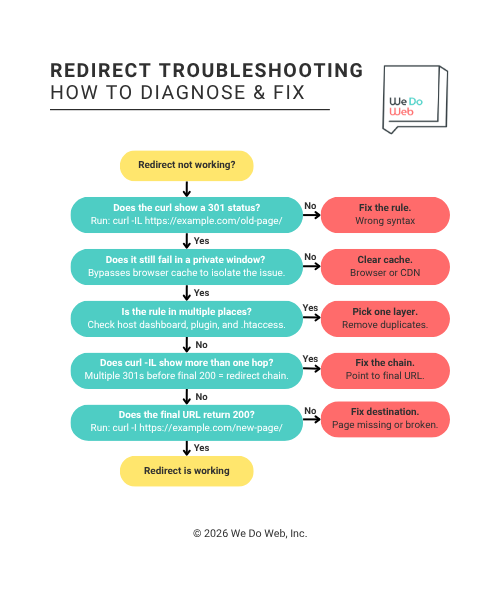
A flowchart to diagnose and fix redirects that are not working properly.
Even correctly configured redirects can fail because of conflicting rules, caching layers, migration mistakes, or server behavior. When redirects do not work as expected, focus on diagnosing the redirect path first before changing more rules.
In most cases, the problem falls into one of a few categories:
- Redirect chains
- Redirect loops
- HTTPS or mixed-content conflicts
- CDN or caching issues
- Incomplete redirect mapping during migrations
The goal is to identify where the redirect breaks down and simplify the redirect path as much as possible.
Fix Redirect Chains
A redirect chain happens when one redirect points to another redirect instead of directly to the final destination.
Example: /old-page/ → 301 → /intermediate-page/ → 301 → /final-page/
This often happens after multiple site updates, migrations, or CMS changes over time.
Chains create unnecessary hops for:
- Browsers
- Search engines
- Crawlers
- APIs
They can also slow down page loading and waste crawl budget during large migrations.
The fix is usually straightforward:
- Update the original redirect so it points directly to the final URL
- Remove outdated intermediate redirects when possible
- Update internal links to the final destination URL
Instead of this: /old-page/ → /intermediate-page/ → /final-page/
You want: /old-page/ → /final-page/
Use tools like:
- Screaming Frog
- curl -IL
- Browser DevTools
- httpstatus.io
To identify multi-hop redirects quickly.
If a migration involves thousands of URLs, export all redirect chains and consolidate them before launch.
Fix Redirect Loops
A redirect loop happens when redirects send users back to a URL that eventually redirects to itself.
Example:
example.com → www.example.com
www.example.com → example.com
The browser never reaches a final page.
Users may see errors like:
- “Too many redirects”
- ERR_TOO_MANY_REDIRECTS
- Infinite loading behavior
Loops are commonly caused by:
- WWW/non-WWW conflicts
- HTTP/HTTPS conflicts
- Duplicate CDN and server redirects
- Plugin and server rules overlapping
- Incorrect rewrite conditions
To diagnose a loop:
- Run:
curl -IL https://example.com - Look for repeating redirect patterns
- Check:
- Server redirects
- CDN redirects
- CMS/plugin redirects
- Reverse proxy behavior
Most loops happen because multiple systems are trying to control the same redirect behavior.
For example:
- Cloudflare forces HTTPS
- WordPress forces HTTPS
- Nginx forces HTTPS
- The rules conflict
The fix is usually to choose one primary redirect layer and remove duplicate logic elsewhere.
Fix Mixed Content and HTTPS Problems
After moving a site from HTTP to HTTPS, some pages may still load insecure resources.
This is called mixed content.
Example:
- The page loads over HTTPS
- But images, scripts, or CSS files still use HTTP URLs
Browsers may block those assets or show security warnings.
Common causes include:
- Hardcoded HTTP URLs
- Old CMS settings
- Outdated CDN asset URLs
- Legacy plugins or themes
You may also see:
- Redirect warnings
- Infinite HTTPS redirect loops
- SSL certificate errors
- Pages partially loading
To troubleshoot:
- Inspect the browser console for blocked resources
- Crawl the site with Screaming Frog
- Search the database for hardcoded HTTP URLs
- Confirm your SSL certificate is active on all domains and subdomains
If you’re using WordPress, check Settings > General and make sure both the WordPress Address and Site Address use HTTPS.
For domain migrations, confirm:
- The old HTTPS domain still has a valid SSL certificate
- Redirects happen before mixed content loads
- Canonical tags point to HTTPS URLs
- Internal links use HTTPS directly
Fix Redirects That Seem Not to Work
Sometimes redirects are technically correct but appear broken because of caching or CDN behavior.
This is especially common with:
- Cloudflare
- WordPress caching plugins
- Managed hosts
- Browser cache
- Reverse proxies
Symptoms may include:
- Old pages still loading
- Redirects working in one browser but not another
- Redirect changes taking several minutes to appear
- Different redirect behavior between mobile and desktop
Before changing rules again:
- Clear browser cache
- Test in a private window
- Clear CDN cache
- Clear server cache
- Clear CMS/plugin cache
Then test using:
curl -I https://www.example.com/old-page/
curl bypasses many browser-level caching issues and shows the actual server response.
If the redirect works in curl but not the browser, the issue is usually caching.
If the redirect fails everywhere:
- Check rule order
- Check redirect conflicts
- Check whether the correct config file is being loaded
- Confirm the redirect was deployed successfully
On platforms like Vercel or Netlify, remember that config changes usually require redeployment before redirects update in production.
Troubleshoot Redirect Mapping During Site Migrations
Large migrations fail most often because of incomplete redirect mapping.
A redirect map is a document that matches:
- Old URLs
- New destination URLs
- Redirect status types
Example:
Old URL | New URL | Status |
/old-service/ | /services/ | 301 |
/blog/post-a/ | /articles/post-a/ | 301 |
Common migration problems include:
- Redirecting all pages to the homepage
- Missing important legacy URLs
- Redirecting irrelevant pages together
- Forgetting media URLs
- Ignoring backlinks to old pages
- Launching before testing the redirect map
Before launch:
- Crawl the old site
- Export all indexable URLs
- Export high-value pages from Ahrefs or SEMrush
- Match every important URL to a relevant destination
- Test redirects in staging
- Crawl the staging environment before launch
After launch:
- Monitor Search Console for new 404 errors
- Watch crawl reports
- Check traffic drops by URL segment
- Re-crawl the old URLs
- Verify canonical tags and internal links
A migration redirect map should never be treated as optional. It is one of the most important parts of preserving rankings and traffic during large URL changes.
Focus on Simplifying Redirect Logic
Most redirect problems come from too much complexity:
- Too many layers
- Too many plugins
- Too many overlapping rules
- Too many redirect hops
A healthy redirect setup should:
- Redirect directly to the final URL
- Use one primary redirect method whenever possible
- Avoid duplicate rules across platforms
- Return consistent status codes
- Be easy to audit later
When troubleshooting redirects, simpler almost always wins.
Redirect Best Practices for SEO
Ongoing maintenance helps prevent redirect chains, crawling inefficiencies, and indexing issues over time. Follow these best practices to maintain healthy redirects.
- Update internal links so they point directly to the final destination URL instead of redirected pages
- Remove outdated URLs from your XML sitemap and replace them with the new canonical URLs
- Make sure canonical tags match the final destination pages, not the old redirected URLs
- Check your robots.txt file after migrations to confirm important sections are still crawlable
- Monitor Google Search Console for new 404 errors, indexing problems, or unexpected redirect behavior
- Keep important migration redirects active long-term, especially if old URLs still have backlinks or traffic
- Remove unnecessary redirect chains whenever possible so old URLs resolve directly to the final page
- Maintain a redirect map or spreadsheet documenting:
- Old URLs
- New destination URLs
- Redirect types
- Implementation dates
- Re-test redirects after major CMS updates, server changes, CDN changes, or platform migrations
- Crawl the site periodically with Screaming Frog or a similar crawler to identify broken redirects, loops, or outdated internal links
The cleaner and simpler your redirect architecture stays over time, the easier your site will be to maintain, audit, and migrate in the future.
Redirects Done Right
Get redirects right and your site handles URL changes, migrations, and restructures without losing rankings, breaking pages, or sending users to dead ends.
Whether you’re working in Apache, Nginx, WordPress, Shopify, Cloudflare, or a modern JavaScript framework, the core principles stay the same:
- Use the correct redirect type
- Redirect directly to the final destination
- Avoid chains and loops
- Test everything before and after launch
For larger migrations, a redirect map saves hours of troubleshooting and protects the search visibility you’ve built.
As your site evolves, revisit your redirects periodically. Remove outdated rules, fix broken paths, and keep your architecture clean.