


You’d be surprised how much fraud we observe on Google Maps: fake duplicate listings, offices incorrectly marked “permanently closed.” Or maybe a competitor’s review count is suspiciously large or growing too quickly.
Whatever the case, Google gives you a path to report it and, hopefully, fix it to get your local SEO efforts back on track. Use the sidebar to quickly scroll to the type of problem you’re facing.
Fake Positive Reviews on Competitor’s Listing
If a competitor’s review count is climbing faster than one should reasonably expect, it’s the same policy violation covered above: spam or fake content. Only this time, it’s aimed at inflating a listing instead of attacking it.
How do I spot fake positive review spam on Google?
These fake positive reviews usually have a few things in common:
- A cluster of five-star reviews landing within a short window
- Generic praise that could describe any law firm, with no specific detail about a case, attorney, or experience
- Reviewer profiles with little to no other activity, or activity that spans unrelated businesses and cities
Google has a specific name for this: the Fake Engagement policy, which covers reviews and ratings meant to manipulate a business’s reputation rather than reflect a real customer experience.
How do I report review spam on another business listing?
You don’t need to be a client of the firm or even identify yourself to report it. Google doesn’t require a connection to the business to flag content that violates policy, only that the content itself breaks the rule.
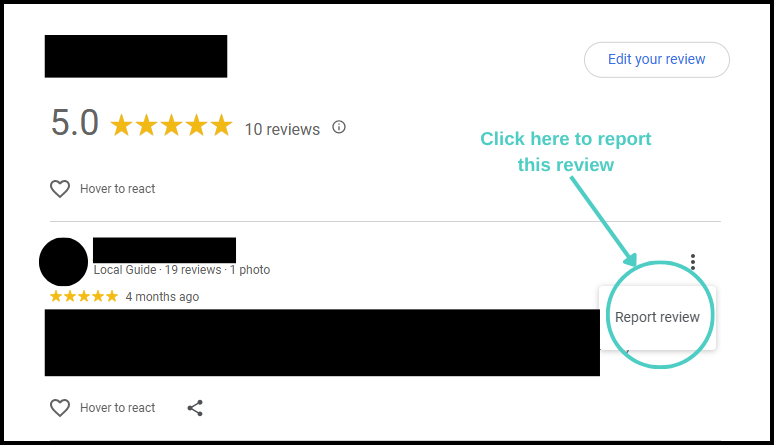
Click to enlarge
To report it:
- Open the listing on Google Maps or Search
- Click the three vertical dots next to the review in question
- Select Report review
- Choose the category that matches
If Google confirms a Fake Engagement violation, the consequences extend beyond removing individual reviews. Google can restrict the offending listing by pausing new reviews for a set period, unpublishing existing reviews, or displaying a warning banner to anyone who visits the listing.
What if the reviews aren’t fake, just paid for?
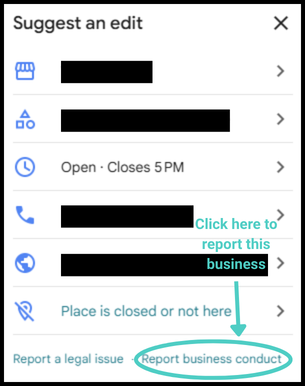
Click to expand
Sometimes, businesses will pay real people to leave real reviews in exchange for a discount, a gift card, or some other incentive. That’s a violation of Google’s policies, and it has its own reporting path since it’s flagging the business’s conduct, not a specific review.
- Open the Google Maps app.
- Search for the business.
- On its listing, tap Suggest an edit.
- At the bottom of that screen, tap Report business conduct.
This path is for the behavior itself, not an individual review. If you’re flagging a specific review instead, use the flagging steps above.
Mistake or Fraud on Your Business Listing Information
Listings run into a few different kinds of trouble. Find the situation that matches yours below.
Issue | How to Spot It | How to Fix It |
Outdated or incorrect information | Old hours, wrong phone number, an address from an old office building | Edit your listing directly |
Marked permanently closed | Listing shows closed even though the firm is open | Edit profile to reopen. Escalate if it keeps happening. |
Real listing tampered with | Unauthorized changes, lost access, a malicious edit | Edit your listing directly if you have access. Escalate if it you don't or if it keeps happening. |
Fake listing impersonating your firm | A separate profile copying your name, address, or branding | Fill out the Business Redressal Complaint Form. |
There’s a Mistake on Your Business Listing
If you own the listing, fix it directly instead of routing through the public suggestion queue.
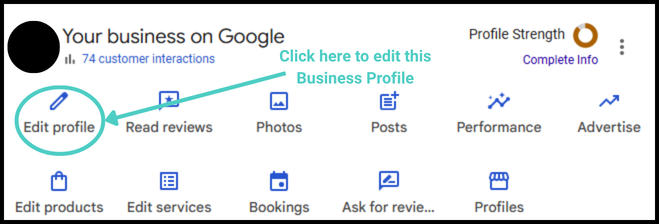
Click to enlarge
- Sign in at business.google.com or search your firm’s name on Google or Maps while signed in.
- Select Edit profile.
- Choose the field you want to change: business hours, phone number, address, description, or another detail.
- Make the correction and save.
- Check back to confirm it’s published. Most changes go live within minutes. Bigger changes, like your business name or category, can take a few days while Google reviews them
Your Listing Was Marked Permanently Closed
Before assuming the worst, check whether this looks like a system error or something deliberate. Google sometimes applies this label automatically based on outdated third-party data, with no bad actor involved.
Either way, the fix is the same as above: sign in, select Edit profile, and reopen the listing. If it keeps happening, or you have reason to believe a competitor is tampering with your listing, review the steps in the next section.
Your Real Listing Was Tampered With
This is different from an honest mistake or a duplicate listing. Your actual, verified profile got changed without your consent, not a separate fake listing, your real one. Signs include a malicious edit that got approved without your knowledge, contact information you didn’t change, or a listing you find you can no longer access at all.
If you still have access, fix it the same way as an incorrect listing above, through Edit profile in your dashboard. If you’ve lost access, or the tampering looks like part of a bigger pattern rather than a one-time edit, escalate to Business Profile Support directly (the ‘When Google Doesn’t Act’ section below explains how). That’s a case for a real person to look at, not a form built for reporting listings you don’t control.
A Fake Listing Is Impersonating Your Firm
This is a separate, impostor profile, not your real one, using your name, address, or branding to confuse clients or divert calls. Since it’s not your listing, you can’t delete it. Skip straight to the Business Redressal Complaint Form. It lets you report several listings at once with supporting evidence, which is useful when one bad actor has set up more than one fake profile targeting your firm.
Note that this form only covers fraud tied to a listing’s name, address, phone number, or website. It’s not for general spam, and it’s not for reviews, which have their own reporting process, covered earlier in this post.
Prepare the following before filing your complaint:
- The listing URL, and the CID or Place ID, if you have it
- Screenshots of the listing itself
- A Street View or photo comparison if the address is fake
- A short timeline of when the fake listing appeared, what’s changed since, and any other information important to your complaint.
When you fill out the Business Redressal Complaint Form, be sure to enter:
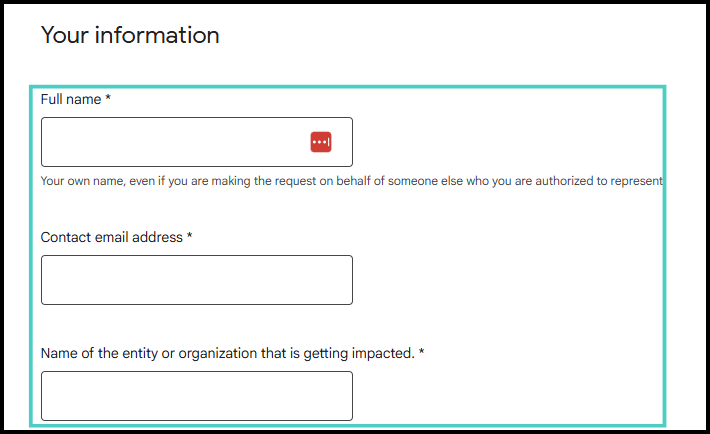
- Name, email, and entity. Use whichever account you’re comfortable receiving updates at. Even though the fraud is aimed at you, you’re technically reporting the fake listing itself, and Google won’t share your identity with whoever set that listing up. Indicate the entity that’s affected.
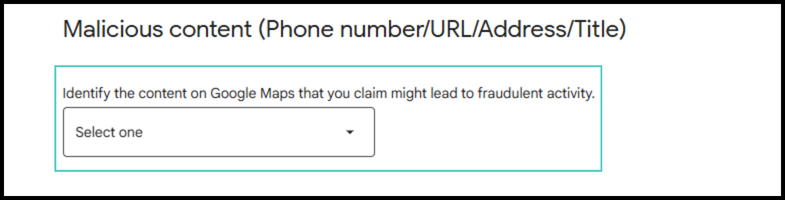
- Content type. Choose the category that matches what was stolen: name (the fake listing uses your firm’s actual name), address (it uses your real address, or a fabricated one close enough to pass), phone number (it uses your actual number, or one made to look like it), or website (it links to a site impersonating yours). This is the “Identify the content on Google Maps” dropdown on the form itself.
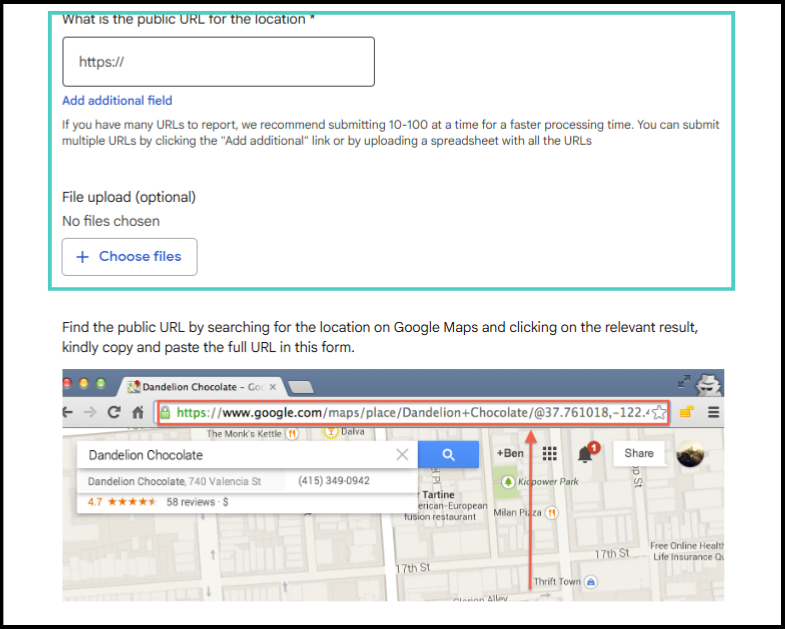
- Public URL. Search the listing on Google Maps, click into the result, and copy the full URL from your browser’s address bar.
- Multiple listings. If one bad actor has set up several fake profiles, you can upload a spreadsheet of all the URLs instead of filing one at a time.
- Explanation. Quote the content from the listing that’s the problem, and if it’s a phone number or website, describe how it could harm users or the business. A vague description is one of the most common reasons a complete-looking complaint still gets rejected.
-

- Enter your info and entity
-
- Select the type of malicious content
-
- Add your listing URL (or multiple URLs)
-
- Add Additional Information
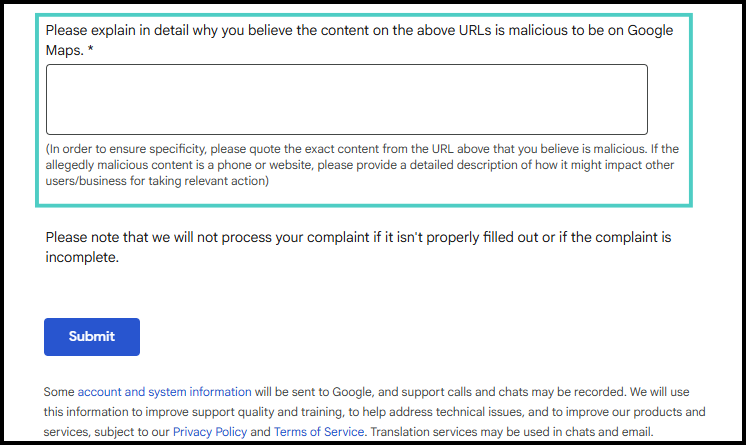
Specific, dated evidence gets a faster look than a general complaint. Most reports resolve within one to two weeks, though don’t expect a status update along the way, since the listing being reported isn’t one you own.
What to Do If Google Doesn’t Act
Sometimes a report comes back with no action, and the problem is still sitting there. A few next steps:
- Escalate through Business Profile Support. The Help Center lets you chat, request a call, or email a real person if the automated process stalls.
- Post in the Business Profile Community. Experienced product experts there can sometimes get a case in front of Google staff directly.
- Give it time, then follow up. If more than 20 business days pass with no resolution, submit a fresh support request rather than resubmitting the same report.
Keep a running folder of screenshots, dates, and your reporting history for each incident. If you need to escalate further, that documentation is what makes your case easy to act on.
Real Story of a GBP Error That Caused Months of Bad Leads
A law firm once came to us confused about a small but consistent stream of leads for medical malpractice cases, a practice area they don’t even handle. They didn’t have a practice area page on the topic, nor had they written any blog posts.
We found the problem during our standard GBP review at onboarding. Whoever set up the GBP had listed medical malpractice as a product on their profile, and that’s where the leads were coming from. Worse, it was tied to their Local Services Ads (LSA) account, so many of those bad leads were also directly costing them money.
An easy fix once we found it, but a good reminder to regularly check every field on all your offices’ GBPs, not just the name, address, and phone number.
How to Protect Your Listing Before It Happens
The firms that handle this best aren’t the ones who catch every attack. They’re the ones who’ve made their profile a harder target in the first place:
- Claim and verify your listing if you haven’t already. Google sometimes asks for a photo of your office or signage as part of verification, so it’s worth knowing that’s normal and not itself a sign something’s wrong.
- Check your listing on a regular cadence. Review your name, address, phone number, hours, and anything else that’s important to optimizing your Google Business Profile listings.
If you’re not sure whether something on your profile is a policy violation, that’s exactly the kind of thing we help clients sort through. Reach out and we’ll take a look together.
